How to Create Accessible Content With Captions, Subtitles and Translations
A practical guide for Indian creators on captions, subtitles, alt text, readable on-screen text and translations on YouTube and Instagram, with a pre-publish checklist.
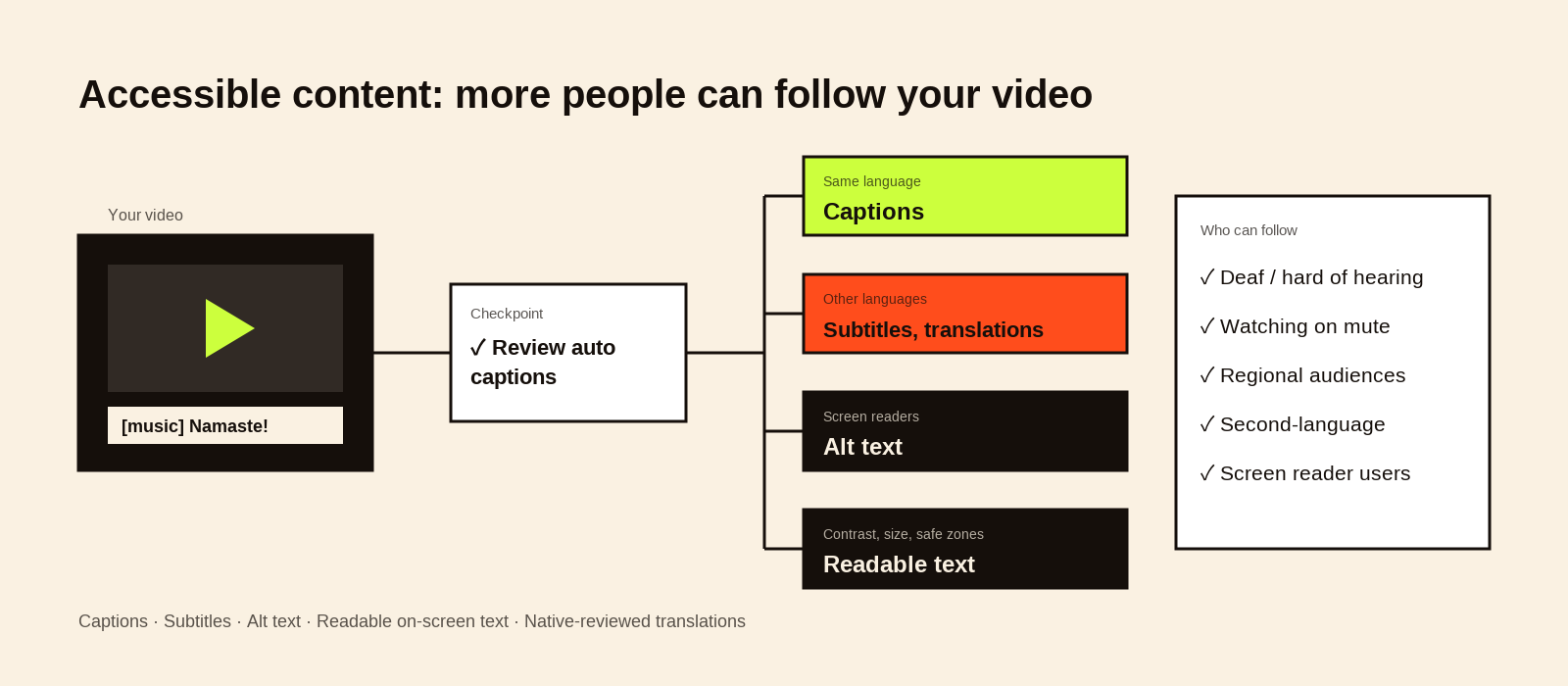
If your video only works with the sound on, in one language, for someone with perfect eyesight, you are leaving people out. Captions, subtitles, alt text and readable on-screen text fix most of that, and none of them need expensive tools. This guide covers what each one is, how to add them on YouTube and Instagram, how to check translations, and a checklist to run before you hit publish.
Quick answer
Accessible content means people can follow your video or post whether they are deaf or hard of hearing, watching on mute, reading in a second language, or using a screen reader. Add accurate same-language captions to every video with speech, review YouTube's auto captions before trusting them, add subtitles or translated titles for other languages, write alt text for images, keep on-screen text large and high-contrast, and get any translation checked by a fluent speaker. Sponsored content needs the same care, including a readable disclosure.
Who accessible content helps
Think about the actual people in your comments and DMs:
- Deaf and hard-of-hearing viewers, who rely on captions to follow speech and important sounds.
- People watching on mute: on a bus in Pune, in a hostel room at night, in an office queue.
- Regional and non-native audiences who would watch a Hindi or English video if it had subtitles in Tamil, Bengali or Marathi.
- Blind and low-vision users who rely on screen readers, which read alt text and written captions aloud.
How many of your viewers watch on mute varies by creator and format, so check your own comments and audience language data rather than trusting a generic statistic. If people keep asking "what did she say at 0:45?", you have your answer.
Captions, subtitles, open and closed captions: the difference
The W3C Web Accessibility Initiative's captions guidance draws a clear line between these terms, and it is worth using the same words when you brief an editor.
| Term | What it is | When to use it |
|---|---|---|
| Captions | Same-language text of the speech plus important non-speech audio (music cues, laughter, a doorbell), synced to the video | Every video with speech, as your default |
| Subtitles | A translation of the speech into another language | When you want viewers who speak another language to follow |
| Closed captions | Captions the viewer can switch on or off | YouTube caption tracks and platform caption features |
| Open (burned-in) captions | Text baked into the video file; they cannot be turned off | Reels and Shorts where you design the text as part of the edit |
Good captions also identify who is speaking when it isn't obvious and describe meaningful sounds, for example [phone buzzing] or [audience laughs].
Use WCAG as your quality bar
WCAG (Web Content Accessibility Guidelines) is the international web accessibility standard, and a useful bar for creators too. Per the W3C, captions for prerecorded video with audio are Level A, the most basic level, and captions for live video are Level AA. Prerecorded audio-only content, such as a podcast clip with a static image, needs a transcript. A video that has only background music and no speech does not need captions.
Captions on YouTube
Automatic captions and Indian languages
According to YouTube's automatic captions help page (fetched November 2026), auto captions work on long-form videos and Shorts in a long list of languages. The Indian languages on that list are Bengali, Gujarati, Hindi, Kannada, Malayalam, Marathi, Punjabi, Tamil and Telugu. Assamese, Odia and Urdu are not on the list, so creators in those languages need to upload or type captions themselves. Automatic captions are only generated in the video's default language, so set that correctly when you upload.
Expressive captions and live automatic captions are English only as of November 2026, and live auto captions are still being rolled out to channels with over 1,000 subscribers.
Always review auto captions
YouTube itself says automatic captions are machine-generated and can get speech wrong because of accents, dialects or background noise. They may not be ready right after upload. They can also fail on very long videos, poor audio, a long silence at the start, overlapping speakers or mixed languages. Hinglish is exactly the kind of mixed-language speech to check line by line, along with brand names, prices and medical or financial terms. YouTube Studio also masks potentially inappropriate words by default; you can turn that setting off if it is hiding legitimate words.
Upload, auto-sync or type your own
YouTube's subtitles help page describes the route: in YouTube Studio, open Subtitles, pick the video, choose Add language, then Add. You then have three options:
- Upload a file: a caption file with timings (such as one your editor exports), or a plain transcript without timings.
- Auto-sync: paste a transcript and YouTube sets the timings. The transcript must match the spoken language, and YouTube does not recommend it for videos over an hour or with poor audio.
- Type manually while the video plays, which works well for short videos and Shorts.
If you script your videos, auto-sync is the fastest accurate option. Edit the script to match what you actually said before pasting.
Translated titles and descriptions
YouTube lets you add translated video titles and descriptions, and then shows the right language to the right viewers, according to its translated titles help page. If a meaningful share of your audience reads Marathi or Bengali, a translated title and description is a low-effort first step before full subtitles or dubbing.
Captions and alt text on Instagram
For Reels, check the captions option in the Reels editor in the app before you publish. Language support varies and we could not confirm a current official list for Indian languages, so preview the captions in your language and do not assume they will appear. For accuracy, burn in your own reviewed captions.
For photos and carousels, Instagram's alt text help page explains that automatic alt text uses object recognition to describe photos, and you can replace it with your own. Before posting, tap Next after choosing a filter, then open Accessibility (sometimes under Advanced settings) and write your alt text. After posting, open the post's menu, tap Edit, then Accessibility or Edit alt text. The description is only read when someone uses a screen reader, and Instagram does not say it affects reach, so write it for people, not for search.
[What the image shows] + [the detail that matters for this post] + [any text in the image].
Example (illustrative): "Flat lay of a cotton kurta in mustard yellow next to a price tag reading Rs 799, with the words 'Diwali edit' handwritten on a card."
Make on-screen text and visuals readable
- Contrast: light text on a dark band or dark text on a light band. Avoid white text straight on a busy, bright background.
- Size: if you have to squint at it on your own phone at arm's length, it is too small.
- Safe zones: keep text away from the top, bottom and right edge of Reels and Shorts, where usernames, captions and buttons sit. Preview on the app before posting.
- Duration: leave each text card on screen long enough to read it twice. Fast-flashing word-by-word captions look trendy but are hard for many people to follow.
- Describe visuals in your voiceover: say "this one costs Rs 499 and the blue one costs Rs 699" instead of "this one and that one". It helps blind viewers and people half-watching.
- Thumbnails: few, large, high-contrast words, with the key message repeated in the title.
- Flashing content: avoid rapid strobe or flashing effects. They can trigger seizures in some viewers. If a clip must include them, warn viewers at the start.
Emoji and hashtags
Screen readers read every emoji aloud by name, so a caption with ten fire emoji becomes a long, confusing sentence. Use a few, at the end of a line, not in place of words. Write multi-word hashtags in CamelCase, such as #MumbaiStreetFood instead of #mumbaistreetfood, so screen readers and human readers can tell the words apart.
Translations and subtitles: quality control
AI translation is now built into both platforms. YouTube's February 2026 auto dubbing announcement says auto dubbing covers 27 languages and is available to everyone, and its help page lists English to Bengali, Hindi, Malayalam, Punjabi, Tamil and Telugu among the pairs. Meta's Reels translation post says Hindi and English translation and dubbing arrived in October 2025, with a rollout in Bengali, Tamil, Telugu, Marathi and Kannada starting in January 2026, for single-speaker Reels. Our guide to AI dubbing and translation covers setup and the trade-offs in detail.
Whether a person or a tool does the first draft, run these checks before a translated version goes live:
- Native review: a fluent speaker of that language (ideally from your audience region) watches the whole thing, not just reads the text.
- Glossary: list words that must never be translated (your name, show name, brand and product names) and preferred spellings.
- Numbers and claims: check every price, date, quantity, percentage and health or money claim against the original. A wrong number in a translated sponsored video is a brand problem.
- Tone: slang and jokes rarely translate word for word. Check the meaning survives.
- Timing: subtitles should appear while the line is spoken and stay long enough to read. Translated text is often longer, so split lines if needed.
If you are deciding which languages to add first, the regional growth guide for Indian creators walks through using audience data to choose.
Accessibility in brand deals
Sponsored content should meet the same bar as your own posts. Agree in the brief who writes and approves captions and translations, and send the brand the caption text for product names and claims before publishing. Your disclosure must also be readable: a tiny, low-contrast "ad" in the corner, or a label that disappears in half a second, does not do its job. Our creator disclosure guide covers how and where to label paid partnerships, and the AI and paid partnership disclosure guide covers what to add when AI dubbing or translation is used.
If you want to see this from the other side, our brand-facing guide to accessible influencer campaigns explains what marketing teams are asked to check. It helps you list captioned, accessible content as a standard deliverable in your campaign proposal.
Pre-publish accessibility checklist
VIDEO
[ ] Captions on (track or burned-in) for all speech
[ ] Auto captions reviewed line by line: names, numbers, brand terms, Hinglish
[ ] Speaker names and key sounds marked where needed
[ ] Default video language set correctly (YouTube)
[ ] Visuals described in voiceover where they carry meaning
[ ] No rapid flashing, or a warning at the start

TEXT ON SCREEN
[ ] High contrast, large enough on a phone
[ ] Inside the safe zone (previewed in app)
[ ] On screen long enough to read twice

POST
[ ] Alt text written for images and carousels
[ ] Hashtags in CamelCase, emoji used sparingly
[ ] Key thumbnail text repeated in title or caption

TRANSLATIONS
[ ] Native speaker reviewed
[ ] Glossary terms kept
[ ] Numbers and claims matched to the original
[ ] Subtitle timing checked

SPONSORED
[ ] Disclosure visible, readable and on screen long enough
[ ] Brand approved product names and claims in captions
Add this to your existing content workflow so it becomes a five-minute habit, not an extra project.
Conclusion
Accessible content is mostly small, repeatable habits: review the captions, write the alt text, make the text readable, and get translations checked by someone fluent. Start with accurate captions on every video, add one more language only when your audience data supports it, and treat sponsored posts with the same care. If you are preparing your profile for brand work, captioned and well-labelled content is also part of what agencies look at when you apply to a creator network.